Abi's Blogging

I will be adding over time to this blog. You will also see in items posted on the links in my Socials page.

Would you like me to add your ideas for the blog? Just use my contact page or email me directly


Here are some possible topics to consider

This is a list of Blog Posts. The list is in no particular order.


Mindset

Mindset

Your mindset can profoundly affect your life experiences, shaping your reactions to everyday situations and influencing your long-term success. Recognizing whether you lean toward a fixed or growth mindset can help you navigate challenges more effectively.


Mindset

Having the right mindset is crucial for success. This entails being adaptable, open to learning, and resilient in the face of challenges. A growth mindset encourages business leaders to embrace obstacles as opportunities for development and innovation.

Model

This refers to the business model, which outlines how a company creates, delivers, and captures value. A well-defined business model includes understanding the target market, revenue streams, and competition. It serves as the framework for generating profit and sustainability.

Method

Methods encompass the strategies, processes, and practices a business employs to execute its model effectively. This can involve operational procedures, marketing strategies, and customer engagement practices. The right methods help streamline operations and enhance productivity.


Back Story from Abi BC


I had a rough time getting through grade school (up to grade 6). That next summer, a light bulb was developing over my head and was fully formed by Grade 9. I was helping my grade 7 math teacher, teach my class mates Algebra. By the time I got to grade 9, I had taught myself up to grade 11 drafting. As time went on, I began to realize that the following text of this page was a great way to describe what happened to me.

During these early years of my life, I also gained the wisdom of 2 main points. One, that it is human that we learn with repeating something that is new to us. And second that being human, we are not perfect and that we can not create something that is perfect. To be human is to error!


Step 1


It is simple as ABC123!

Think of it as being simple and it will be simple!


Step 2


Analogy 1


All cars are the same to use:


This is the most important analogy!

All cars have a steering wheel, accelerator, brake pedal, speedometer and everything else is somewhere in the car. That is the same with all computers and all software. They all have a keyboard, screen, software and everything else is in the hard drive.

This relates to the fact that all computers are the same! Just subtle differences inside and out. Just like car and pickups.


Analogy 2


Computer Compared to a Car


A computer is like a car in several ways:


Engine vs. Processor: The car's engine powers the vehicle, just as the computer’s processor (CPU) executes commands and processes data. Both are essential for performance; without a strong engine or a processor!

Operating System vs. Dashboard: The computer’s operating system (OS) acts like a car’s dashboard. The dashboard displays critical information (speed, fuel level) and allows the driver to interact with the vehicle’s functions (radio, navigation). The OS manages software and hardware resources, making the user experience smooth and intuitive.

Memory vs. Fuel Tank: The memory (RAM) in a computer is similar to the fuel tank in a car. Just as a full fuel tank provides the energy needed for the car to run, sufficient RAM enables the computer to operate multiple applications simultaneously without slowing down.

Storage vs. Trunk: A car’s trunk provides storage space for items, while a computer's hard drive (or SSD) stores data and files. Both are necessary for keeping essential items and information available for use when needed.


Analogy 3


Computer Compared to the Human Body


Computers can also be compared to the human body in interesting ways:


Processor vs. Brain: The computer’s processor functions like the human brain, processing information, making decisions, and controlling actions. Just as the brain interprets signals from the body and coordinates responses, the processor interprets inputs and executes tasks.

Memory vs. Nervous System: The computer's memory (RAM) is akin to the human nervous system, which facilitates communication between different body parts. RAM allows for quick access to information needed for immediate tasks, much like the nervous system relays signals rapidly for reflexes and actions.

Operating System vs. Consciousness: The OS of a computer is comparable to human consciousness. It governs interactions, manages resources, and maintains the operation of various software applications, similar to how consciousness directs thoughts, feelings, and actions.

Data Storage vs. Long-term Memory: The data storage in a computer (hard drives) resembles human long-term memory, where information is kept for future reference. Just as people retrieve memories when needed, computers access stored data to perform functions.


Step 3


Spend a little bit of time each day, that works for you to sit down and close your eyes and think about the simplicity of these ideas above. Within no time, you will realize you can absorb the info on this website page and now you will enjoy using your computer even more.


Conclusion


These analogies highlight the functionalities and relational structures between computers, cars, and the human body, illustrating complex systems through more familiar concepts. To help you realize that it is ALL as simple as ABC123! Funny note: ABC is the initials of my name. That is why the business name is ABC Enterprise.


back to top icon
touchpad

Laptop Touchpads Details

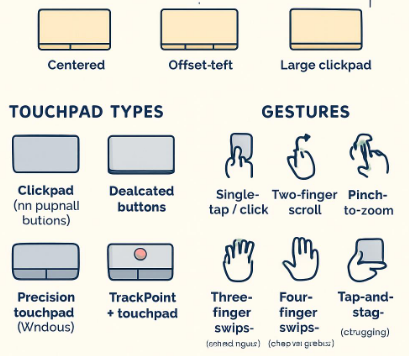
Here's a detailed overview of laptop touchpads, including their layouts and various options for usage.


Laptop Touchpads Overview

Basic Layout Types
Description
Usage Options
Left/Right Button Locations

Standard Touchpad
Rectangular, usually located below the keyboard.
Simple point-and-click operations; most common layout.
Left button is usually on the bottom left; right button on the bottom right.
Precision Touchpad
Enhanced touchpad with integrated gestures, often featuring Windows Precision.
Advanced gestures like three-finger and four-finger swipes, pinch to zoom, etc.
Integrated buttons may not be separate; tapping bottom left/right corners acts as left/right clicks.
Extended Touchpad
Larger surface area, may include dedicated areas for gestures.
More space for gestures and movements; useful for multitasking.
Same as standard; may also feature larger clunky buttons for traditional actions at the bottom.
Touch Bar
Dynamic display that replaces function keys, often found in MacBook Pro.
Customizable shortcuts and controls for apps; enhances productivity using touch gestures.
No traditional buttons; touch area is used for controls instead.

Common Gestures


Tap to Click
Tapping on the touchpad registers as a click.
Quick selection without pressing down; useful for fast navigation.
Tapping anywhere on the surface acts as a click.
Two-Finger Scroll
Sliding two fingers vertically or horizontally enables scrolling.
Easily scroll through documents or web pages; intuitive navigation.
Uses the entire surface; no dedicated buttons used for scrolling.
Pinch to Zoom
Pinching with two fingers increases or decreases the scale of content.
Useful for images and maps; simplifies zooming in and out.
Uses the touchpad surface; no button interaction required.
Three-Finger Swipe
Swiping three fingers can switch between open applications or desktops.
Enhances multitasking; quick navigation between tasks.
Uses the entire surface; no dedicated buttons involved.
Four-Finger Swipe
Can be set to show notifications, action center, or switch between desktops.
Useful for accessing system features quickly.
Touchpad surface is used; no button interaction required.

Settings and Customization


Sensitivity Adjustment
Most touchpads allow users to adjust sensitivity settings.
Tailor sensitivity to preference for better control.
Not button-related; sensitivity applies to overall responsiveness.
Gesture Customization
Users can often customize gestures in touchpad settings.
Assign different actions to gestures based on needs.
Not button-related; actions depend on gestures rather than clicks.
Palm Rejection
Prevents accidental clicks caused by resting hands.
Essential for typing; improves accuracy.
No direct relation to button locations; affects overall functionality.

Additional Features


Multi-touch Support
Allows multiple fingers for gestures and actions.
Enhances functionality for advanced users.
No specific button interaction; relies on touch gestures.
Integrated Buttons
Some touchpads have physical click buttons integrated into the touch surface.
Allows for traditional left-click and right-click actions.
Typically, left button on bottom left, right button on bottom right, or integrated.
Backlit Touchpad
Some laptops feature illuminated touchpads for visibility in low light.
Improves usability in dim environments.
Button locations remain unchanged; illumination enhances visibility.

Usage Tips

  • Familiarize with Gestures: Spend time learning the gestures specific to your touchpad model. Practice will improve efficiency.
  • Customize Settings: Adjust sensitivity and gestures to better suit your workflow and preferences.
  • Keep Clean: Regularly clean the touchpad surface to ensure accuracy; oils and dirt can hinder performance.
  • Use Software Upgrades: Look for touchpad driver updates or software that can enhance functionality.
back to top icon
Windows 11 Recall

Windows 11 Recall

Windows 11 Recall is designed to take periodic snapshots of your screen, storing them locally on your device. Users can search through these snapshots later to find information or content they may have previously accessed. The feature operates on newer "Copilot+" PCs equipped with specific hardware capabilities.


How to Disable or Delete Windows Recall

Option 1: Disabling Snapshot Saving

  1. Open Settings: Click on the Start menu and select Settings.
  2. Navigate to Privacy & Security: Click on Privacy & Security in the sidebar.
  3. Go to Recall & Snapshots: Select the Recall & Snapshots section.
  4. Toggle Off Snapshots: Turn off the "Save Snapshots" toggle switch.
  5. Delete Existing Snapshots: Click on Delete Snapshots and confirm by clicking Delete All.

This will stop future snapshots from being taken and remove existing ones from your device.


Option 2: Resetting Windows Recall

  1. Open Settings: Navigate back to Settings.
  2. Access Recall & Snapshots: Again, go to Privacy & Security, then Recall & Snapshots.
  3. Advanced Settings: Click on Advanced Settings.
  4. Reset: Click the Reset Recall button, confirm the reset, and authorize with Windows Hello if prompted.

This method deletes all collected data and resets the settings of the feature.


Option 3: Uninstalling Windows Recall

  1. Open Windows Features: Search for Turn Windows features on or off in the Start menu.
  2. Locate Recall: Scroll through the list and uncheck the Recall option.
  3. Apply Changes: Click OK and restart your computer.

Uninstalling Recall will also remove any snapshots that were previously saved.


Additional Considerations

Control Your Data: You can manage what apps or websites are saved by adjusting settings within Recall & Snapshots to exclude sensitive activities.

Privacy Concerns: Recall was initially criticized for potential privacy risks, but measures like biometric authentication and local encryption have been added to enhance user control and security.

back to top icon
computer recommendations

Computer Recommendations

For a long-term investment in a laptop or PC, several key factors should guide your selection, including performance, build quality, upgradeability, and warranty support. Here are some of the best options for both laptops and desktops known for longevity and reliability.


Best Laptops for Long-Term Use

Model
Key Features
Price Range

Apple MacBook Pro
M4 Chip, Retina Display, excellent battery life, seamless ecosystem
$$$$
Dell XPS 15
10th/11th Gen Intel processors, high-quality display, sturdy build
$$$$
Lenovo ThinkPad X1 Carbon
Lightweight, durable, great keyboard, long battery life
$$$$
HP Spectre x360
2-in-1 flexibility, premium design, good performance
$$$
Asus ROG Zephyrus G14
High performance for gaming and productivity, excellent cooling
$$$

Best Desktops for Longevity

Model
Key Features
Price Range

Apple iMac
Sleek design, strong performance, macOS ecosystem
$$$$
Dell XPS Desktop
Versatile performance, durable design, upgradeable
$$$$
HP Elite Series
Business-class reliability, good support, expandable options
$$$
Lenovo ThinkCentre
Reliable for business use, good security features, budget options
$$$
Origin PC Custom Build
Tailored performance, high-end components, lifetime support
$$$$-$$$$$

Factors to Consider for Long-Term Use


Hardware Short List

2026, you need the following as a minimum guide line: 16 GB RAM, DDR5 RAM, 500 GB SSD (Solid State Drive) and multiple ports.


Performance

Look for latest processors (Intel i5/i7, AMD Ryzen 5/7) and ample RAM (at least 16GB) to ensure smooth performance over the years.

Build Quality

A sturdy chassis and high-quality components can prevent wear and tear. Brands known for durability include Apple, Lenovo, and Dell.

Upgrade-ability

Desktops are generally more upgradeable than laptops. Choose models that allow you to upgrade RAM, storage, or graphics.

Warranty and Support

A long warranty period and accessible customer support can make a huge difference. Brands like Apple and Dell often provide solid support.

Battery Life (for Laptops)

Long battery life is important for portability. Look for laptops that offer 8+ hours of use on a single charge.

Conclusion

Consider your specific needs—gaming, work, or general use—and make actively and fix it when it breaks, but they also stand watch to protect your personal information from outside threats.
back to top icon
bodyguard

Digital Bodyguard

Once you have learned how to protect yourself, your family & your business, you will have your result of having a Digital Bodyguard.


ABC Enterprise is a technology solutions provider focused on three core pillars: education, technical support, and Cybersecurity,. Founded on decades of IT experience, the mission of ABC Enterprise is to ensure that technology works for its clients rather than causing them frustration.

The services offered by ABC Enterprise include:
  • Education and Training: They provide digital literacy programs and training sessions for a wide audience, including students, seniors, and professionals,. Topics range from basic computing and computer problem-solving to web development.
  • Technical Support: ABC Enterprise offers reliable assistance for various issues, such as printer setup, internet connectivity, and disaster recovery,. They provide both remote help and on-site troubleshooting with several maintenance and security packages available.
  • Security Solutions: To help clients feel safe, ABC Enterprise implements cybersecurity measures to protect data and devices from threats like phishing and ransomware. This includes system configuration and regular maintenance.
ABC Enterprise is based in the Almaguin Highlands of Ontario, Canada, and serves local areas such as Muskoka, Gravenhurst, Parry Sound, and North Bay. While they provide on-site services in these regions, they primarily focus on working online, allowing them to serve residential and small-to-mid-sized business clients across North America. The owner of ABC Enterprise brings over 30 years of experience to the business, having transitioned to full-time operations over the last decade.

To help you understand their service model, you can think of ABC Enterprise as a digital personal trainer and bodyguard; they not only teach you how to use your equipment effectively and fix it when it breaks, but they also stand watch to protect your personal information from outside threats.
back to top icon
4 Truths

4 Surprising Truths

>We’ve all been there. Stuck in an automated phone tree, waiting on hold for 45 minutes, only to connect with a support agent who is clearly reading from a script. The experience is impersonal, frustrating, and often leaves us feeling more confused than when we started. It’s easy to believe this is just how tech support works. But what happens when tech support isn't just a business model, but a personal passion? By looking at the philosophy of a small-town tech company founded on a decades-long passion for helping people, ABC Enterprise, we can uncover some profound truths about what effective tech help really looks like.


True Tech Support Is About Feelings, Not Just Fixes

The primary goal of a support call isn't just to get your printer working again. It's to restore your sense of control and confidence. This shift from a technical fix to an emotional outcome is what separates good support from great support. It’s a philosophy born directly from the company owner’s stated “love to help people get through there frustration with tech.”
ABC Enterprise builds this emotional outcome directly into its service philosophy. The focus isn't just on solving the problem at hand but on the user's experience throughout the process. The work isn't done until the client feels secure and capable. As they put it: It is all about helping you feel comfortable, that you know the right things are being done for you.

The Best Support Teaches You How to Not Need It

It sounds counter-intuitive for a business, but the most valuable tech support is the kind that actively tries to make itself obsolete. Instead of just fixing a recurring issue, a great technician empowers you with the knowledge to prevent it or solve it yourself in the future.
This is why ABC Enterprise lists "Education" as one of its three core services, right alongside Support and Security. They offer technology training on everything from beginner computing to problem-solving for a wide audience that includes "students, seniors, professionals." This focus on digital literacy creates a more sustainable and impactful relationship than a simple break-fix model, fostering user independence rather than dependence.

Decades of Expertise Can Thrive Outside Major Tech Hubs

There's a common assumption that top-tier, experienced tech talent is concentrated in major urban centers and Silicon Valley-style hubs. But deep expertise can be found anywhere, and a long history of hands-on problem-solving is often more valuable than proximity to a corporate headquarters.
ABC Enterprise is based in the Almaguin Highlands of Ontario, yet its founder brings "many decades of experience" to the table—over 30 years part-time and the last 10 years full-time. This deep well of knowledge is applied to help clients not just in the local Muskoka region, but remotely "across North America." It's a powerful reminder that in our connected world, true expertise is measured in years of practice, not miles from a city center.

A Holistic Approach is the Only Truly Secure Approach

Cybersecurity isn't a single product you can install and forget. True digital safety is a combination of good tools, smart habits, and reliable help. An effective tech partner understands that security, education, and support are not separate services but three legs of the same stool.
ABC Enterprise integrates its services to create a complete safety net. Their security solutions involve system configuration and protection against threats like phishing, but they are strengthened by their educational programs that teach users how to spot those threats in the first place. And if something does go wrong, their support services are there to get you back up and running. This holistic strategy is perfectly captured in their mission: Helping you stay safe, connected, and confident with technology.

What This Pro Teaches Us About Tech Help

When a genuine passion for technology and a love for helping people is the driving force, tech support transforms. The lessons from this small-town pro show us that it can be a partnership built on fostering comfort, empowering users through education, leveraging deep experience, and taking a holistic view of digital safety.
It leaves us with a critical question to consider the next time we're facing a tech issue: are we just looking for a quick fix, or should we be seeking a partner who helps us become more confident and capable in the long run?

back to top icon

Linus OS

Linux OS Updates & More

This page is for setting up two programs (bash files) linked on your Desktop to automatically update your Linux OS and keep it clean.

I chose this option as I am often restarting my computers several times a day. I did not want the to work on startup every time and I needed them to work more often than once a week, but only once a day. So use a button seamed to be a simple solution.

It is also assumed that you already have your firewall, gnome-terminal all installed.
sudo apt install gnome-terminal ufw gufw xdotool -y


I used free AI (duck.ai) to work this out


User prompt:


Write a program for Linux that updates, upgrade, auto removes and clean all automatically at the push of a button add an aspect that I can see it in process per step.


AI Response:


You can automate the process of updating, upgrading, auto removing packages, and cleaning up on Linux OS by creating a simple shell script and then using a GUI to execute it. Here’s how you can do it step by step:


Step 1: Create the Shell Script

1. Open your terminal.
2. Use a text editor like `nano` or `vim` to create the script. Here, we'll use `nano`.

nano update_system.sh

3. Add the following content to the file:

#!/bin/bash

# Function to send error emails
send_error_email() {
    local message="$1"
    echo "#!/bin/bash$message" | mail -s "Update Process Error" (author)@abcent.org
    # ask me for my email address as (author) will not work
}
echo "Starting the update process..."
# Update package lists
echo "Updating package lists..."
if sudo apt update; then
    echo "Update completed successfully."
else
    echo "Update failed."
    send_error_email "Update failed during the update package lists phase."
    exit 1
fi

# Upgrade installed packages
echo ""
echo "Upgrading installed packages..."
if sudo apt upgrade -y; then
    echo "Upgrade completed successfully."
else
    echo "Upgrade failed."
    send_error_email "Upgrade failed during the upgrade installed packages phase."
    exit 1
fi

# Remove unused packages
echo ""
echo "Removing unused packages..."
if sudo apt autoremove -y; then
    echo "Autoremove completed successfully."
else
    echo "Autoremove failed."
    send_error_email "Autoremove failed during the unused packages removal phase."
    exit 1
fi

# Clean up package cache
echo ""
echo "Cleaning up package cache..."
if sudo apt clean; then
    echo "Cleanup completed successfully."
else
    echo "Cleanup failed."
    send_error_email "Cleanup failed during the package cache cleanup phase."
    exit 1
fi

# Clean browser data
echo ""
echo "Cleaning browser data..."
# Remove Firefox cache and cookies
if [ -d "$HOME/.cache/mozilla/firefox" ]; then
    rm -rf "$HOME/.cache/mozilla/firefox/*" && echo "Firefox cache cleaned."
fi

# Remove Chrome cache and cookies
if [ -d "$HOME/.cache/google-chrome" ]; then
    rm -rf "$HOME/.cache/google-chrome/*" && echo "Chrome cache cleaned."
fi

# Remove Brave cache and cookies
if [ -d "$HOME/.cache/BraveSoftware/Brave-Browser" ]; then
    rm -rf "$HOME/.cache/BraveSoftware/Brave-Browser/*" && echo "Brave cache cleaned."
fi

# Remove Microsoft Edge cache and cookies
if [ -d "$HOME/.cache/microsoft-edge" ]; then
    rm -rf "$HOME/.cache/microsoft-edge/*" && echo "Microsoft Edge cache cleaned."
fi

# Remove Opera cache and cookies
if [ -d "$HOME/.cache/opera" ]; then
    rm -rf "$HOME/.cache/opera/*" && echo "Opera cache cleaned."
fi

# Clean temporary internet files and other temporary files
echo ""
echo "Cleaning temporary files..."
if sudo rm -rf /tmp/*; then
    echo "Temporary files cleaned."
else
    echo "Failed to clean temporary files."
    send_error_email "Failed to clean temporary files during the cleanup phase."
fi

# Empty the user trash bin
echo ""
echo "Emptying the user trash bin..."
if rm -rf ~/.local/share/Trash/*; then
    echo "User trash bin emptied."
else
    echo "Failed to empty the user trash bin."
    send_error_email "Failed to empty the user trash bin during the cleanup phase."
fi

# Empty trash from external devices
echo ""
echo "Emptying external trash bins..."
for device in /media/*; do
    if [ -d "$device/.Trash" ]; then
        rm -rf "$device/.Trash/*" && echo "Trash bin emptied for device $device."
    fi

    # The Trash may also be at .Trash- in some systems
    if [ -d "$device/.Trash-1000" ]; then
        rm -rf "$device/.Trash-1000/*" && echo "Trash bin emptied for device $device."
    fi
done

echo ""
echo -e "\033[1;92mUPDATE PROCESS COMPLETED!\033[0m"
echo ""


Adjusting the Desktop Launcher

Ensure the desktop launcher is set up to execute the script and keep the terminal open so you can see the output.

1. Open the `.desktop` file for editing:

nano ~/Desktop/UpdateSystem.desktop

2. Make sure it looks like this:

[Desktop Entry]
Version=1.0
Name=Update System
Comment=Update, Upgrade, Autoremove and Clean Packages
Exec=gnome-terminal -- bash -c "/home/(usr)/update_system.sh; exec bash"
Icon=system
Terminal=true
Type=Application

Replace `/home/(usr)/update_system.sh` with the actual path.

3. Save the file and exit (`Ctrl + X`, then `Y`, then `Enter` for nano).

4. Make the `.desktop` file executable:

chmod +x ~/Desktop/UpdateSystem.desktop

Final Steps

Running the Script

Now, when you double-click the "Update System" launcher, it will open a terminal window showing real-time progress for each step. You will receive messages indicating success or failure for each command, providing clear feedback on the update process.

Notes

- Make sure your terminal settings allow you to view the message output.
- The process will pause for user confirmation during upgrades if any packages require it, so monitor the terminal for prompts.


back to top icon

Linux Backups

Backups for Linux OS

This page is for setting up a program (bash files) linked on your Desktop to automatically update your Linux OS and keep it copy of your files.

I chose this option as I am often restarting my computers several times a day. I did not want the to work on startup every time and I needed them to work more often than once a week, but only once a day. So use a button seamed to be a simple solution.

It is also assumed that you already have your firewall, gnome-terminal, and clamav all installed.
sudo apt install gnome-terminal ufw gufw xdotool -y


I used free AI (duck.ai) to work this out


User prompt:


write the code for linux terminal .sh to run a back up of Documents, Downloads, Pictures, Music, & Videos and the code for a Desktop button.


AI Response:


To create a backup code that backs up only new files from specified folders such as **Documents**, **Downloads**, **Pictures**, **Music**, and **Videos** to `/home/(usr)/Backups`, you can use a shell script with `rsync`, which is efficient for such tasks. Here’s a simple script that you can use:


Step 1: Create the Shell Script

1. Open your terminal.
2. Use a text editor like `nano` or `vim` to create the script. Here, we'll use `nano`.

nano ~/backup.sh

3. Add the following content to the file:

#!/bin/bash

echo "Starting Backup Process"
# Define the source directories and the backup destination
SOURCE_DIRS=("$HOME/Documents" "$HOME/Downloads" "$HOME/Pictures" "$HOME/Music" "$HOME/Videos")
BACKUP_DIR="$HOME/Backups"
# if you wish, you can change the $HOME/Backups to the path of your external storage device which is a better idea anyway

# Create the backup directory if it doesn't exist
mkdir -p "$BACKUP_DIR

# Loop through each source directory and back it up
for DIR in "${SOURCE_DIRS[@]}"; do
    # Check if source directory exists
    if [ -d "$DIR" ]; then
        # Use rsync to back up only new files
        rsync -av --exclude "*.iso" --ignore-existing "$DIR/" "$BACKUP_DIR/$(basename "$DIR")/"
        echo "Backed up: $DIR"
    else
        echo "Warning: Source directory $DIR does not exist."
    fi
done

echo ""
echo -e "\033[1;92mBACKUP PROCESS COMPLETED!\033[0m"
echo ""


4. Save the file and exit (`Ctrl + X`, then `Y`, then `Enter` for nano).

5. Make the `.desktop` file executable:

chmod +x backup.sh

Adjusting the Desktop Launcher

Ensure the desktop launcher is set up to execute the script and keep the terminal open so you can see the output.

1. Open the `.desktop` file for editing:

nano ~/Desktop/Backup.desktop

2. Make sure it looks like this:

[Desktop Entry]
Version=1.0
Name=Update System
Comment=Update, Upgrade, Autoremove and Clean Packages
Exec=gnome-terminal -- bash -c "/home/(usr)/backup.sh; exec bash"
Icon=folder
Terminal=true
Type=Application

Replace `/home/(usr)/backup.sh` with the actual path.

3. Save the file and exit (`Ctrl + X`, then `Y`, then `Enter` for nano).

4. Make the `.desktop` file executable:

chmod +x ~/Desktop/Backup.desktop

Final Steps

Running the Script

Now, when you double-click the "Backup" launcher, it will open a terminal window showing real-time progress for each step. You will receive messages indicating success or failure for each command, providing clear feedback on the update process.

Notes

- Make sure your terminal settings allow you to view the message output.
- The process will pause for user confirmation during upgrades if any packages require it, so monitor the terminal for prompts.


back to top icon
my clam icon

ClamAV for Linux OS

This page is for setting up a program (bash files) linked on your Desktop to automatically update your Linux OS's Antivirus program ClamAV is up to date and does a full system scan.

I chose this option as I am often restarting my computers several times a day. I did not want the to work on startup every time and I needed them to work more often than once a week, but only once a day. So use a button seamed to be a simple solution.

It is also assumed that you already have your firewall, gnome-terminal, and clamav all installed.
(sudo apt install gnome-terminal ufw gufw clamav clamav-daemon clamtk -y)


I used free AI (duck.ai) to work this out


User prompt:


Write a program for Linux that is for Clamav, Stop Clamav, update it, start it and run full system scan.


AI Response:


To automate the process of stopping, updating, starting ClamAV, and running a full system scan, you'll follow a similar approach to the previous script but tailored for ClamAV. Here’s how to do it step-by-step:

Step 1: Create the Shell Script

1. Open your terminal.
2. Create a new shell script:

nano clamavfullscan.sh

3. Add the following content to the script:

FULL SYSTEM SCAN


#!/bin/bash

# Function to send error emails
send_error_email() {
    local error_message=$1
    echo "$error_message" | mail -s "ClamAV Full Scan Error" (authors)@abcent.org
    # ask me for my email address as (author) will not work
}

echo "Starting ClamAV Full Scan..."

# Run a full system scan
echo ""
echo "Running full system scan..."
sudo clamscan -r --bell -i --exclude="/sys/module/*/uevent" && echo "Scan completed." || {
    error_msg="Scan failed."
    echo "$error_msg"
    send_error_email "$error_msg"
    exit 1
}

echo ""
echo -e "\033[1;92mCLAMAV FULL SCANS COMPLETED!\033[0m"
echo ""


4. Save the files and exit (`Ctrl + X`, then `Y`, then `Enter` for nano).

5. Make the script executable:

chmod +x clamavfullscan.sh

Step 2: Create a Desktop Launcher

1. Create a new desktop launcher:

nano ~/Desktop/ClamAVFullScan.desktop

2. Add the following content:

[Desktop Entry]
Version=1.0
Name=ClamAV Tasks
Comment=Stop ClamAV, Update, Start It, and Run Full Scan
Exec=gnome-terminal -- bash -c "/home/(usr)/clamavfullscan.sh; exec bash"
Icon=clamtk
Terminal=true
Type=Application


Make sure the `Exec` line points to the correct full path of your script (`/home/(usr)/clamavfullscan.sh`).

3. Save the file and exit (`Ctrl + X`, then `Y`, then `Enter` for nano).

4. Make the `.desktop` file executable:

chmod +x ~/Desktop/ClamAVFullScan.desktop

Final Steps

You should now see a "ClamAV Full Scan" launcher on your Desktop. When you double-click it, it will open a terminal window and execute the `clamavfullscan.sh` script.

Notes

- Ensure ClamAV is installed: Make sure that ClamAV and its services (`clamav-freshclam`) are installed and enabled on your system.
- Monitor for Prompts: As with any script using `sudo`, you might need to enter your password at various points, depending on your system's configuration.
- Adjust Scan Path: Modify the `-r` option in the `clamscan` command to specify different directories if needed. The `/` scans the whole system, which can take a while, depending on how many files you have.


back to top icon
phishing icon

What Is Phishing?

Real Examples & How to Spot Them


Phishing Definition

Such as passwords, credit card details, or personal identification. They typically do this through fraudulent emails, messages, or websites that appear to be from legitimate sources.


Common Examples of Phishing

Email Phishing: An attacker sends an email that looks like it’s from a reputable company (like a bank) asking the recipient to click on a link and provide personal information. For example, a fake email claiming your account has been compromised may direct you to a fraudulent website.

Spear Phishing: Unlike generic phishing, spear phishing targets specific individuals or organizations. For instance, an employee receives a personalized email that appears to be from a company executive, requesting sensitive information or credentials.

Smishing and Vishing:
Smishing involves phishing via SMS text messages. An example would be a text that says, "Your package is ready for pickup. Click here to confirm your details."
Vishing (voice phishing) occurs over the phone. An attacker might call you pretending to be from your bank, asking for your account number to verify suspicious activity.

Recognizing these tactics can help you avoid falling victim to phishing schemes. Always verify the source of communications before sharing any personal information.

Tips to Deal with Phishing

Dealing with phishing effectively requires vigilance and proactive measures. Here are some practical tips to help protect yourself from phishing attacks:

Be Cautious with Emails and Links
Always verify the sender's email address. Look for subtle misspellings or unusual domains. Avoid clicking on links in unsolicited emails. Instead, visit the official website directly through your browser.

Inspect Websites for Security
Before entering any personal information, check for "https://" in the URL, where the "s" stands for secure. Look for a padlock icon in the browser's address bar, indicating a secure connection.

Use Multi-Factor Authentication (MFA)
Enable MFA on your accounts whenever possible. This adds an extra layer of security, requiring more than just your password to access your accounts.

Stay Informed About Phishing Techniques
Familiarize yourself with common phishing tactics. Knowledge of current trends helps you recognize potential threats.

Verify Requests for Personal Information
If you receive requests for sensitive information, contact the organization directly using official channels to confirm the request.

Use Spam Filters
Activate your email provider’s spam filters to catch dubious emails. Regularly check your spam folder for incorrectly filtered emails.

Report Phishing Attempts
If you encounter a phishing attempt, report it to your email provider and the organization being impersonated. This helps them warn others and take action.

Keep Software Updated
Regularly update your device’s operating system and applications to protect against known vulnerabilities that attackers may exploit.


By following these tips, you can significantly reduce the risk of falling victim to phishing attacks. Stay vigilant and prioritize your online security.

back to top icon

Top Password Best Practices for 2026

Such as passwords, credit card details, or personal identification. They typically do this through fraudulent emails, messages, or websites that appear to be from legitimate sources.


Here are the top password best practices for 2026, ensuring strong cybersecurity measures for individuals and organizations alike.

Best Practices Description

  • Use Password Managers A password manager generates, stores, and encrypts unique passwords for every account, significantly reducing the risk of breaches caused by weak credentials.
  • Enable Multi-Factor Authentication (MFA) Always use MFA wherever available. It provides an additional layer of security by requiring a second form of verification beyond just the password.
  • Create Long, Unique Passwords Passwords should be long (ideally 12-16 characters), complex, and unique for every account to defend against brute-force and credential-stuffing attacks.
  • Regularly Audit and Rotate Credentials Regularly review and rotate high-risk passwords, such as those for administrative accounts or sensitive data, to minimize exposure from potential breaches.
  • Monitor for Leaks Use tools to monitor for your credentials on the dark web and set up alerts for active breaches, enabling proactive responses to compromised accounts.
  • Avoid Predictable Patterns Ensure passwords do not include easily guessable personal information (like birthdays) or common 0. Stay Informed about Phishing Teach users to recognize phishing attempts and suspicious login prompts. An informed user is a critical line of defense against social engineering attacks.words. Training employees on avoiding such patterns is crucial.
  • Train Employees on Password Hygiene Ongoing education about best practices helps cultivate a culture of security, emphasizing the importance of strong passwords and the risks of password reuse.
  • Use Secure Connections Always use HTTPS or secure Wi-Fi networks to transmit passwords to protect them from interception.
  • Implement Strong Password Policies Set clear organizational policies that dictate password complexity, length, and storage methods to ensure everyone adheres to secure practices.
  • Stay Informed about Phishing Teach users to recognize phishing attempts and suspicious login prompts. An informed user is a critical line of defense against social engineering attacks.

Key Considerations in Password Management


Password Managers

Thanks to technologies offered by many password managers, users can create long, complex, and unique passwords without the burden of remembering each one. These tools promote better security by masking and managing passwords efficiently.

Multi-Factor Authentication

In an age where credential theft remains one of the most frequent attack vectors, MFA serves as a crucial deterrent. It adds layers of security that can prevent unauthorized access even if a password is compromised.

Regular Audits and Protocol

Establishing a routine to audit and rotate credentials helps organizations manage security effectively. High-risk accounts should be scrutinized and adjusted regularly to ensure they remain secure.

Cultural Change

Achieving better password security is not just about technology; it requires a cultural shift within organizations. Empowering users with knowledge and tools is essential for fostering a security-first mindset.


Conclusion

Following these best practices will ensure robust password management and significantly reduce vulnerabilities in cyberspace for 2026 and beyond. Employing technology alongside human awareness is the most effective strategy to safeguard sensitive information.

back to top icon

Mobile & Remote Security: Protect Your Devices at Home & On the Go

Keeping your devices secure, both at home and while traveling, is crucial. Here are key strategies and tools to enhance your mobile and remote security.


Best Practices for Mobile Security

  • Use Strong Passwords Ensure your devices have strong, unique passwords. Consider using a password manager to keep track.
  • Enable Two-Factor Authentication (2FA) Add an extra layer of security by enabling 2FA for your accounts.
  • Keep Software Updated Regularly update your operating system and apps to protect against vulnerabilities.
  • Install Security Software Use reputable security apps that offer features like malware detection and anti-theft.
  • Manage Permissions Review and manage app permissions to limit access to sensitive information.

Best Practices for Remote Security

  • Access Secure Networks Use a Virtual Private Network (VPN) when accessing public Wi-Fi.
  • Disconnect Unused Devices When not in use, disconnect devices from the internet to reduce vulnerability.
  • Data Encryption Use encryption tools for sensitive data stored on your devices.
  • Regular Backups Regularly back up your data to a secure location, ensuring recovery in case of a breach.
  • Educate Yourself on Phishing Be cautious with emails or links from unknown sources that can lead to phishing scams.

Comparing Security Tools

Security Tool
Description
Pros
Cons

Password Managers
Tools that help create and store complex passwords
Easy management, generates strong passwords
Potential vulnerability if master password is compromised
VPN
Encrypts internet connection to protect online activity
Enhances privacy on public networks3
Can reduce internet speed
Antivirus Software
Protects against malware and viruses
Provides real-time protection and scanning
May require ongoing costs and regular updates
Firewalls
Monitors and controls incoming and outgoing network traffic
Adds an additional layer of security
Configuration can be complex
Browser Extensions (e.g., HTTPS Everywhere, Adblock Plus)
Tools that enhance browser security by enforcing secure connections and blocking ads
Protects against tracking, reduces exposure to malicious ads
May slow down browsing speed, compatibility issues with some sites

Conclusion

By implementing strong security measures for both mobile and remote use, you can protect your devices from theft and cyber threats effectively. Staying informed and updated on security practices is essential for maintaining privacy and safety while navigating the digital landscape.
back to top icon

How to Back Up Your Data the Right Way

Backing up your data is essential for protecting against data loss. External drives are a reliable and straightforward option. They offer portability, relatively large storage capacities, and ease of use. Here's how to effectively back up your data utilizing external drives:


Step-by-Step Guide for Backing Up Data to External Drives

  • Choose the Right External Drive Capacity: Select a drive with ample space for all your data. Common sizes range from 500 GB to 8 TB or more. Type: Decide between HDD (Hard Disk Drive) and SSD (Solid State Drive). SSDs are faster but typically more expensive.
  • Connect the External Drive Use a compatible USB or Thunderbolt port on your computer. Most drives are plug-and-play, meaning they will automatically be recognized.
  • Select Backup Software Use built-in software: Windows: Use the File History or Windows Backup and Restore. macOS: Use Time Machine. Alternatively, consider third-party software such as Acronis True Image, EaseUS Todo Backup, or Macrium Reflect.
  • Set Backup Preferences Full Backup: Backs up all files. Incremental Backup: Only backs up files that have changed since the last backup. Schedule Backups: Set up a regular backup schedule (daily, weekly, or monthly).
  • Select Files and Folders Choose the specific files or folders you want to back up. Prioritize critical documents, photos, and essential applications.
  • Initiate the Backup Process Start the backup through your chosen software. Monitor the progress to ensure all data is copied successfully.
  • Verify Backup Integrity After the backup is complete, check a few files to ensure they are accessible and not corrupted. This ensures your data is reliably backed up.
  • Eject the External Drive Safely Always use the "Eject" option before physically disconnecting the drive to prevent data corruption.

Tips for Managing External Drive Backups

Use Multiple Drives: For added security, consider using more than one external drive for backups, storing one offsite if possible.
Label Drives Clearly: Use labels to identify the contents or the date of the backup.
Regular Updates: Make it a habit to update backups regularly, especially after adding significant new files or making critical changes.
Encryption: For sensitive data, use encryption software to secure your backup.

Pros and Cons of Using External Drives for Backups

Pros
Cons

Portable and easy to use
No Internet required
Large storage capacity
Direct access to files
Physical damage can occur
Can be misplaced
Needs regular maintenance
Limited to one physical location

Conclusion

External drives provide a robust and practical solution for backing up data. Following these steps can help you ensure that your data remains safe and accessible. Prioritizing this method can save you from potential data loss and provide peace of mind.

back to top icon

Why Small Businesses Are Targets for Cyberattacks

Small businesses are increasingly becoming prime targets for cyberattacks due to several factors. Understanding these vulnerabilities can help small business owners better protect their assets and data.


Lack of Robust Cybersecurity Measures

Many small businesses often lack the necessary resources to invest in robust cybersecurity protocols. They may rely on basic security measures, making them easy prey for cybercriminals who exploit weaknesses in inadequate systems.

Limited Cyber Awareness and Training

Employees at small businesses may not receive adequate training on cybersecurity best practices. This lack of awareness can lead to mistakes, such as falling for phishing scams or mishandling sensitive information, increasing the chances of a successful cyberattack.

High-Value Data Management

Small businesses often handle sensitive customer data, including personal information and payment details. Cybercriminals target these businesses to steal this data, which can be sold on the dark web or used for identity theft.

Inadequate Incident Response Plans

When small businesses experience a cyberattack, they often lack a formalized incident response plan. This can result in longer recovery times and greater damage, making them more appealing targets for attackers looking for easy victims.

Growing Ransomware Threats

Ransomware attacks are on the rise, targeting small businesses that are less equipped to handle such threats. Attackers often demand substantial ransoms, knowing that smaller entities may feel pressured to pay to regain access to their data.

Increasingly Sophisticated Attack Techniques

Cybercriminals are continually evolving their tactics. Many small businesses are unprepared for sophisticated attacks that require advanced technical knowledge. This means they may not recognize or defend against newer exploitation techniques, such as social engineering.


Conclusion

By addressing these vulnerabilities and investing in better cybersecurity practices, small businesses can significantly reduce their risk of becoming targets for cyberattacks. Engaging in regular training, creating strong security policies, and implementing appropriate technology can go a long way in safeguarding their operations.

back to top icon

Affordable IT Solutions for Small Business Growth

Investing in IT solutions can drive significant growth for small businesses without breaking the bank. Below are some effective and budget-friendly options tailored for small enterprises.
Here are some affordable IT solutions that can significantly aid the growth of small businesses:


Cloud Computing Solutions

Tool
Description
Benefits

Google Workspace
Suite of productivity tools including email, docs, and storage.
Cost-effective for collaboration and storage.
Microsoft 365
Subscription-based services for Office applications and cloud storage.
Familiar interface, scalable options.

Managed IT Services

Tool
Description
Benefits

Remote IT Support
24/7 access to IT experts who assist with tech issues remotely.
Reduces downtime, affordable costs.
Network Security Management
Protects business data from cyber threats.
Peace of mind, compliance with regulations.

E-commerce Platforms

Tool
Description
Benefits

Shopify
User-friendly platform for setting up online stores.
Easy to use, affordable monthly plans.
WooCommerce
E-commerce plugin for WordPress users.
Customizable, strong community support.

Marketing Solutions

Tool
Description
Benefits

Mailchimp
Email marketing service that helps automate campaigns.
Affordable, excellent for small businesses.
Hootsuite
Social media management tool to schedule posts and track engagement.
Streamlines social media presence, cost-effective.

Accounting Software

Tool
Description
Benefits

QuickBooks
Comprehensive accounting software for small businesses.
Easy invoicing, budgeting, expense tracking.
Wave
Free software for accounting, invoicing, and receipt scanning.
Cost-effective for small businesses.

Communication Tools

Tool
Description
Benefits

Slack
Messaging platform for team collaboration.
Enhances communication, integrates with other tools.
Zoom
Video conferencing service for remote meetings.
Affordable video calls and webinars.

Conclusion

Adopting these solutions can streamline operations, enhance collaboration, and contribute to the overall growth of your small business. Have you already implemented any of these options, or are there specific areas you're looking to focus on more?

back to top icon

Social Engineering Tactics Explained (Scams Beyond Email)

Social engineering refers to manipulative techniques used to trick individuals into divulging confidential or personal information. While phishing emails are the most recognized form, there are various other tactics employed. Below are some notable examples of social engineering scams that extend beyond emails.


Pretexting

This tactic involves creating a fabricated scenario to steal personal information.
Example: An attacker impersonates a bank official and calls a target, claiming there's a security issue with their account. They might ask for verification details like account numbers or Social Security numbers.

Phishing via Social Media

Social media platforms are ripe for social engineering.
Example: Scammers create fake profiles to establish trust with targets. They may send direct messages that ask for sensitive information under the guise of a contest or promotion.

Baiting

Baiting uses a promise of a reward to entice individuals into exposing sensitive information.
Example: Offering free downloads—like movies or software—containing malware. Once the target downloads the file, they unknowingly compromise their computer.

Tailgating

This physical security breach involves gaining unauthorized access to a restricted area.
Example: An attacker follows an employee into a secure building, often claiming to have forgotten their access card. They exploit the employee’s courtesy to gain entry.

Vishing (Voice Phishing)

This is a phone-based variant of phishing.
Example: Attackers call pretending to be from a government agency, warning the target about a legal issue and requesting personal details to "resolve" it.

SMS Phishing (Smishing)

Similar to email phishing but conducted via text messages.
Example: Victims receive a text that appears to come from their bank, urging them to click on a link to verify account details, which leads to a fake website.

Social Engineering Through Tech Support

Scammers sometimes pose as tech support to manipulate victims.
Example: A user receives a call claiming to be from a reputable company like Microsoft, stating their computer has a virus. The scammer guides them to grant remote access, allowing them to steal information.

Watering Hole Attacks

Here, attackers compromise a website that a particular group frequents.
Example: An attacker embeds malware into a legitimate website where their targeted audience visits, leading to unwitting installation of malware on visitor devices.


Conclusion

Adopting these solutions can streamline operations, enhance collaboration, and contribute to the overall growth of your small business. Have you already implemented any of these options, or are there specific areas you're looking to focus on more?

back to top icon

Test your skills with this quiz!

Here's a fun cybersecurity quiz to test your safety skills. Each question has multiple-choice answers.


Cybersecurity Quiz


Question 1: What is phishing?
a) A method of securing networks
b) A technique used to steal sensitive information via email
c) A tool for encrypting data
d) A software for monitoring user activity

Question 2: Which of the following is a strong password?
a) 123456
b) Password
c) qT5!bW7@zN3
d) abcdef

Question 3: What should you do if you receive an unsolicited email requesting personal information?
a) Reply with the requested information
b) Ignore it
c) Click any links in the email
d) Report it as spam

Question 4: What does two-factor authentication (2FA) provide?
a) Additional password complexity
b) A second method for confirming identity
c) Faster login times
d) A stronger password policy

Question 5: What is a firewall?
a) A type of malware
b) A physical barrier for data centers
c) A security system that monitors and controls incoming and outgoing network traffic
d) An encryption standard

Answers Key
1. b
2. c
3. d
4. b
5. c

How did you do? Feel free to ask if you want explanations for any of the questions or additional quizzes!

back to top icon